When the coach sends the season as a screenshot or PDF, the useful details are scattered across rows, venue notes, and message captions. SnapToCal for Android helps turn those dates into editable events so you can check the schedule once and add the entries you need to your Google Calendar.
PDF uploads require Pro. Check current plans in the app.
From the source to your review
A coach's season schedule
Fictional example · a youth soccer schedule for September 2026
- September 12 · Game at 10 AM · Arrive 9:30 · Field 3
- Choose how to represent the arrival time and record kickoff separately. Confirm the venue's full address.
- September 15 · Practice · 6–7 PM · Home
- Replace 'Home' with the actual practice field. Check that this is your child's team.
- September 19–20 · Tournament · Times TBD
- Keep the dates as tentative placeholders if useful. Do not treat missing kickoff times as confirmed.
After saving, check the first game and practice in Google Calendar. Continue to check the coach's updates because a document import is not a live team feed.
Your schedule and detected details will vary. Compare each event with your original source.
How to add the schedule
Identify the right team and season
Use the schedule for the correct age group, division, and season. Include the year and the legend for home and away locations. If a screenshot includes several teams, identify the rows you need before importing.
Scan the schedule or select the file
Open the image in SnapToCal or choose the PDF with Pro. Keep any accompanying coach's message nearby if it explains arrival times or a venue change that is absent from the file.
Review games and practices separately
Check each date and opponent, then confirm that practices have their own titles and locations. Edit details from the original source and deselect entries for other teams. Verify every venue; 'home' is not a street address.
Save to the calendar your family uses
Choose a writable Google calendar that is already available on your phone. If another family member needs to see it, the calendar's sharing permissions must already allow that access. Importing events does not grant someone else access to your Google Calendar.
See the app's event review screen
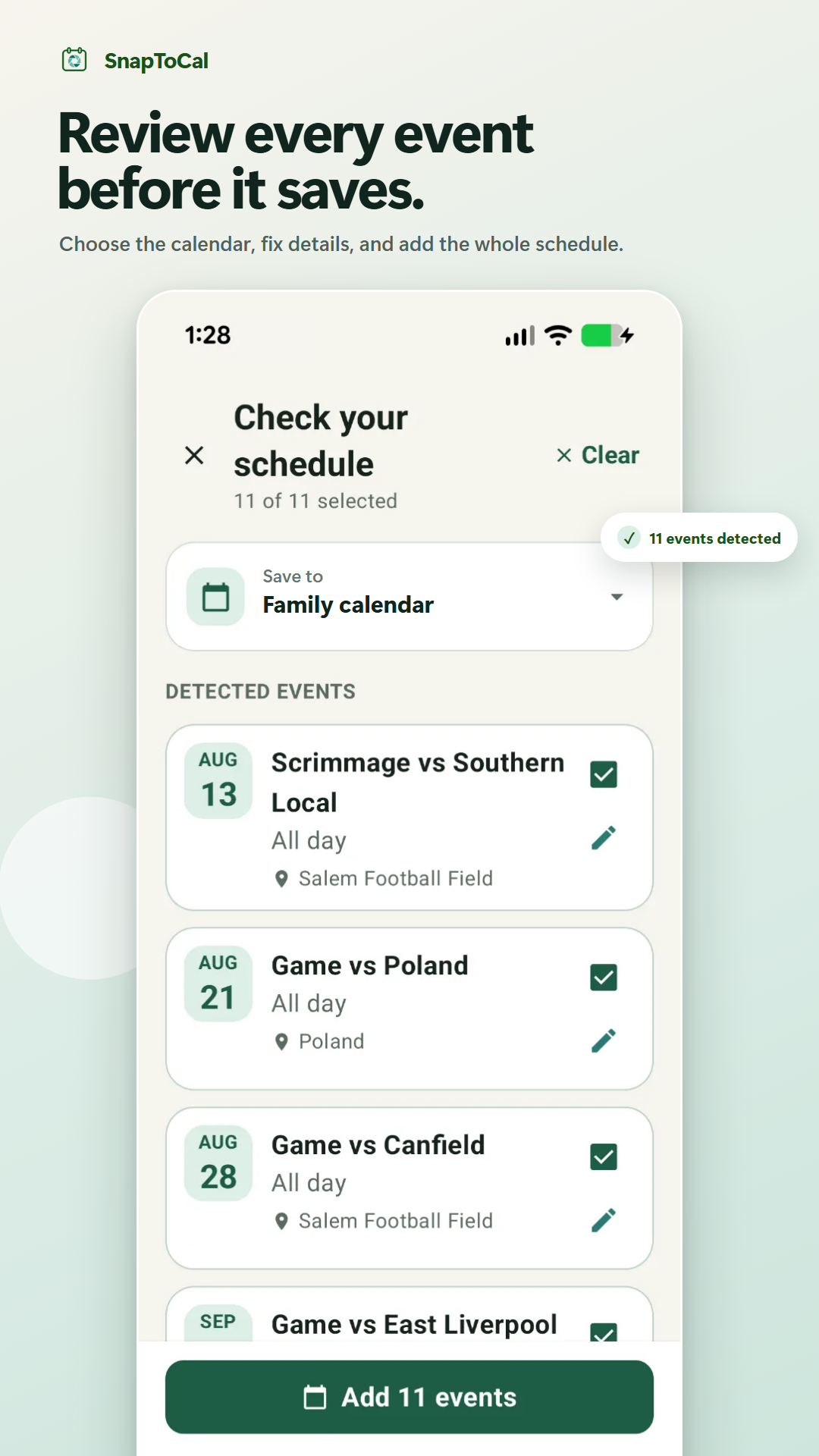
Details to check before saving
Arrival time versus game time
A 10 AM game with a 9:30 arrival has two useful times. Choose the event start deliberately and record the other time in the notes, or set an appropriate reminder in your calendar afterward.
Tournament placeholders
A tournament weekend may list a date before opponents or kickoff times are known. Preserve that uncertainty in the event details, then update the event when the final schedule arrives.
Cancellations and rescheduling
A screenshot does not stay connected to the team's latest announcements. Keep checking the organizer's updates and review affected events; importing a second full schedule can leave both old and new entries on your calendar.
Common questions
Should I use the team's calendar subscription instead?
If the organizer maintains an official calendar feed, it may be the better source for ongoing changes. Confirm what the feed includes. SnapToCal's image and PDF workflow is useful when the schedule you have is a document that needs review.
Can I put two children's teams on different calendars?
Choose the appropriate writable destination calendar for each import. Check which child's events are selected and use clear event titles so practices and games remain distinguishable.
Will SnapToCal monitor the coach's messages?
No. It does not automatically monitor team messages, websites, or inboxes. You provide the source schedule and approve the events you want to save.
See SnapToCal support for help and the privacy policy for how schedule content is processed.
Ready to review your schedule?
Get SnapToCal for Android. Check the app for current plans and scan limits; PDF uploads require Pro.
Get SnapToCal on Google Play