A school timetable, club calendar, or conference agenda often arrives as a PDF. SnapToCal Pro can read that schedule on Android and turn its dated entries into editable events. You review the results and save the events to a writable Google Calendar on your device, without preparing a calendar import file yourself.
PDF uploads require Pro. Check current plans in the app.
From the source to your review
A PDF agenda with overlapping sessions
Fictional example · a community workshop on October 3, 2026
- 9–9:30 AM · Welcome · Main hall
- Keep the date, start/end time, and hall together in one event.
- 9:30–10:30 AM · Gardening · Room A
- Select this session if it is the one you plan to attend.
- 9:30–10:30 AM · Cooking · Room B
- This is a parallel session. Deselect it if you chose gardening; do not merge the two rooms.
Compare the review list with the PDF's columns before saving. Extracting every session is different from choosing the sessions you will attend.
Your schedule and detected details will vary. Compare each event with your original source.
How to add the schedule
Save the original PDF to your phone
Download the schedule from the organizer's message or website. Check that it is the current version and includes the pages and notes needed to understand its dates. Keep the original available while you review.
Choose the PDF in SnapToCal
Open the file picker in SnapToCal and select the schedule. PDF access is part of Pro. If the file cannot be read, check that it opens normally on your phone and ask the organizer for an accessible copy if needed.
Review the extracted schedule
Compare the event list with the PDF. Check the year, weekday, start time, end time, and venue. Select only the sessions, classes, or dates you intend to attend, and correct ambiguous details before saving.
Add the approved events to your calendar
Choose a writable Google Calendar on the phone, add your selected events, and confirm them in Google Calendar. Keep the PDF until you have checked that the intended dates were saved.
See the app's event review screen
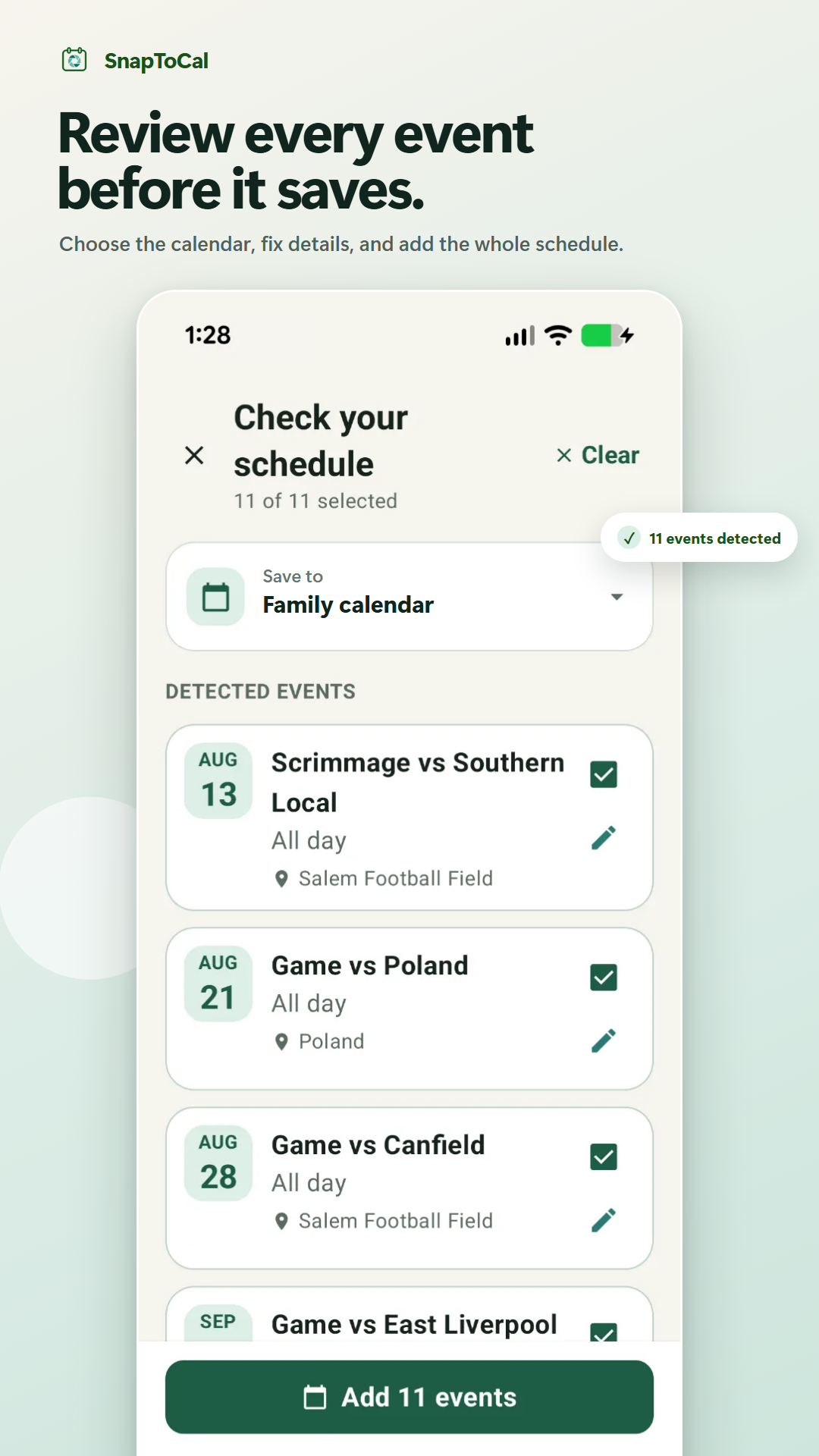
Details to check before saving
A timetable is not always a list of actual dates
A row that says 'Monday, 9 AM' needs a term start and end to become a dated schedule. Include that context and check the resulting dates; a weekly pattern alone does not establish holidays or exceptions.
All-day dates and timed sessions
A school closure may belong as an all-day event, while a parent meeting needs a specific time. Check that the review preserves the distinction instead of accepting an arbitrary meeting time.
Tables with several rooms or tracks
Read across each row in the source. Make sure the title, time, and location belong to the same session, particularly when multiple activities appear side by side.
Common questions
Is this a free online PDF converter?
This guide explains the SnapToCal Android app. PDF uploads require SnapToCal Pro; there is no document-upload converter on this webpage. Check the current plans in the app before subscribing.
Can Google Calendar import the PDF file itself?
Google's documented calendar-file import workflow uses ICS or CSV files on a computer. A PDF schedule needs its event details converted first. SnapToCal takes the Android review-and-save route through calendars available on your phone.
Does SnapToCal produce an ICS or CSV download?
This workflow adds reviewed events to a selected device calendar. It does not require or promise an ICS or CSV export from SnapToCal.
Will a replacement PDF automatically change saved events?
No. A PDF import is not a live calendar feed. Compare a revised schedule with events already saved before adding it again, so you can avoid duplicates and catch cancellations.
Where is my PDF processed?
Schedule content is sent for AI processing to extract events. Review the privacy policy before uploading content, especially schedules containing personal details. The app does not promise that extraction happens entirely on your phone.
For an existing ICS or CSV file, use Google Calendar's import instructions.
See SnapToCal support for help and the privacy policy for how schedule content is processed.
Ready to review your schedule?
Get SnapToCal for Android. Check the app for current plans and scan limits; PDF uploads require Pro.
Get SnapToCal on Google Play