Importing a schedule and sharing a calendar are two separate steps. First, arrange access to a Google Calendar your family uses. Then use SnapToCal on Android to review school or team dates and save them to that writable calendar. Google Calendar's sharing and sync settings determine who can see the saved events.
PDF uploads require Pro. Check current plans in the app.
From the source to your review
Two activities, one deliberate destination
Fictional example · calendars named Family and Personal
- School meeting · September 16 · 6 PM
- Choose the Family calendar if both parents need to see the event. Confirm that it is writable on the importing phone.
- Soccer practice · September 17 · 5 PM
- Save to the same shared destination if appropriate. Include the team in the title when siblings have different practices.
- A calendar named Family exists on both phones
- Matching names do not prove it is the same calendar. Confirm the account and sharing access, then check the saved event on the other phone.
One parent can import into the shared destination. Having both parents import the same full document can create duplicate events.
Your schedule and detected details will vary. Compare each event with your original source.
How to add the schedule
Set up Google Calendar sharing
The calendar owner can open Google Calendar on a computer, find the calendar under My calendars, and open Settings and sharing. Add the intended family members, choose suitable permissions, and send the invitation. Recipients need to accept the calendar invitation. Work or school accounts may restrict sharing.
Confirm access on the Android phone
Make sure the correct Google account is on the importing phone and calendar sync is enabled. Refresh the calendars in SnapToCal. The parent doing the import needs event-editing permission; a calendar they can only view cannot receive new events.
Review the school or team schedule
Open the image, screenshot, or PDF with Pro in SnapToCal. Check the dates, titles, times, and venues. Select only the entries your family needs, especially when a schedule includes several teams or grades.
Choose the shared destination and confirm
Select the intended writable Google calendar before adding the events. After the save completes, check the calendar on the other family member's device. If an event is missing, check account, visibility, sharing, and sync settings before importing the document again.
See the app's event review screen
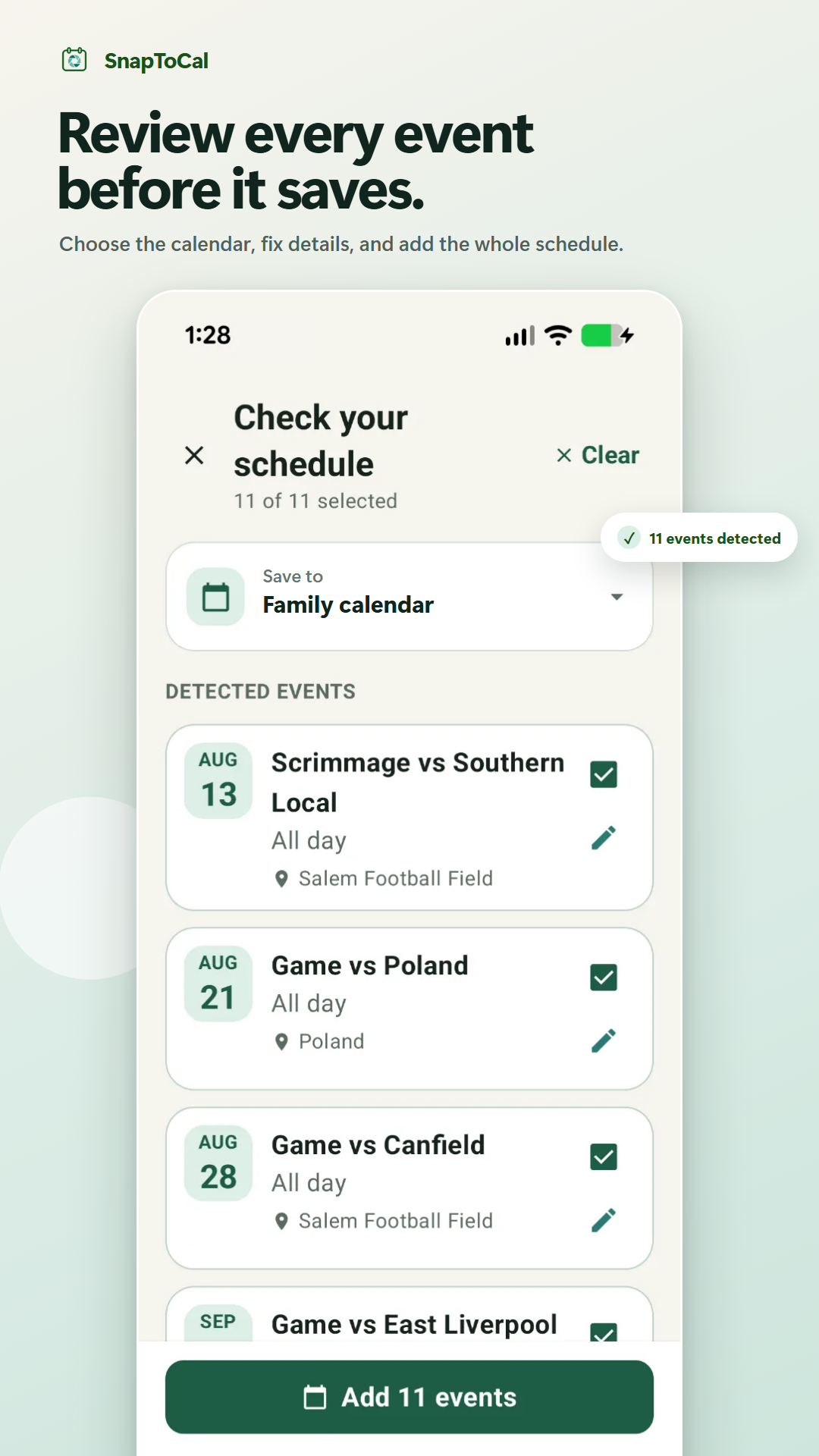
Details to check before saving
Seeing a calendar is not permission to edit it
The importing parent needs permission to create events. Other family members can have view access if they only need to follow the schedule; give broader permissions only when needed.
A local phone calendar may not be shared
Confirm the destination is the Google calendar you intended. An event saved to a device-only calendar does not become visible to the rest of the family automatically.
An import does not follow future source changes
Google can synchronize the events saved to a shared calendar, but that does not connect the calendar to the original PDF or coach's messages. Review schedule revisions separately.
Common questions
Does everyone need SnapToCal to view the events?
Family members who already have access to the destination Google calendar can view its synced events through their calendar app. They do not need SnapToCal just to view events another person saved there.
Does joining a SnapToCal household share my Google Calendar?
No. The optional household preview shares family profiles; Google Calendar permissions are managed separately. It does not grant access to a Google calendar or automatically copy imports between different calendars.
Can a family member see the events on iPhone?
They may view the shared Google calendar in a compatible calendar app after setting up their account and calendar access. The importing workflow in this guide uses SnapToCal on Android; it does not imply the SnapToCal iPhone app is available.
Why did we get duplicate events?
Check whether both parents imported the document or an official feed already contains those dates. Choose one source and import owner for a given schedule, and review existing entries before adding another copy.
For current sharing controls and permission choices, follow Google's calendar-sharing instructions.
See SnapToCal support for help and the privacy policy for how schedule content is processed.
Ready to review your schedule?
Get SnapToCal for Android. Check the app for current plans and scan limits; PDF uploads require Pro.
Get SnapToCal on Google Play