A picture of a schedule is easy to share but easy to lose in your camera roll. SnapToCal for Android reads event details from a photo or screenshot and gives you an editable list. You check the list, select the events you want, and add them to a writable Google Calendar already available on your phone.
PDF uploads require Pro. Check current plans in the app.
From the source to your review
A club flyer with three different kinds of dates
Fictional example · an after-school club flyer for September 2026
- September 10 · Welcome meeting · 6–7 PM · Library
- Check the year, both times, and the library location. Keep this as a timed event.
- September 17 · Bring a permission slip
- This is a deadline with no meeting time. Confirm whether you want an all-day calendar entry.
- September 24 · Trip · Meet after school
- Ask the organizer for the arrival and return times. The phrase 'after school' does not establish either.
Keep the full flyer visible while you compare the review list. A screenshot can contain a deadline, a meeting, and an incomplete plan in the same image.
Your schedule and detected details will vary. Compare each event with your original source.
How to add the schedule
Capture the complete schedule
Take a photo in even light, or save the original screenshot. Include the heading, year, date columns, and any notes that explain times or locations. A cropped list of day numbers without its month is difficult to interpret reliably.
Open the photo in SnapToCal
Use the camera or choose an existing photo or screenshot. Let SnapToCal extract the event details. If the source is blurry or text is cut off, use a clearer image before relying on the result.
Compare the events with the image
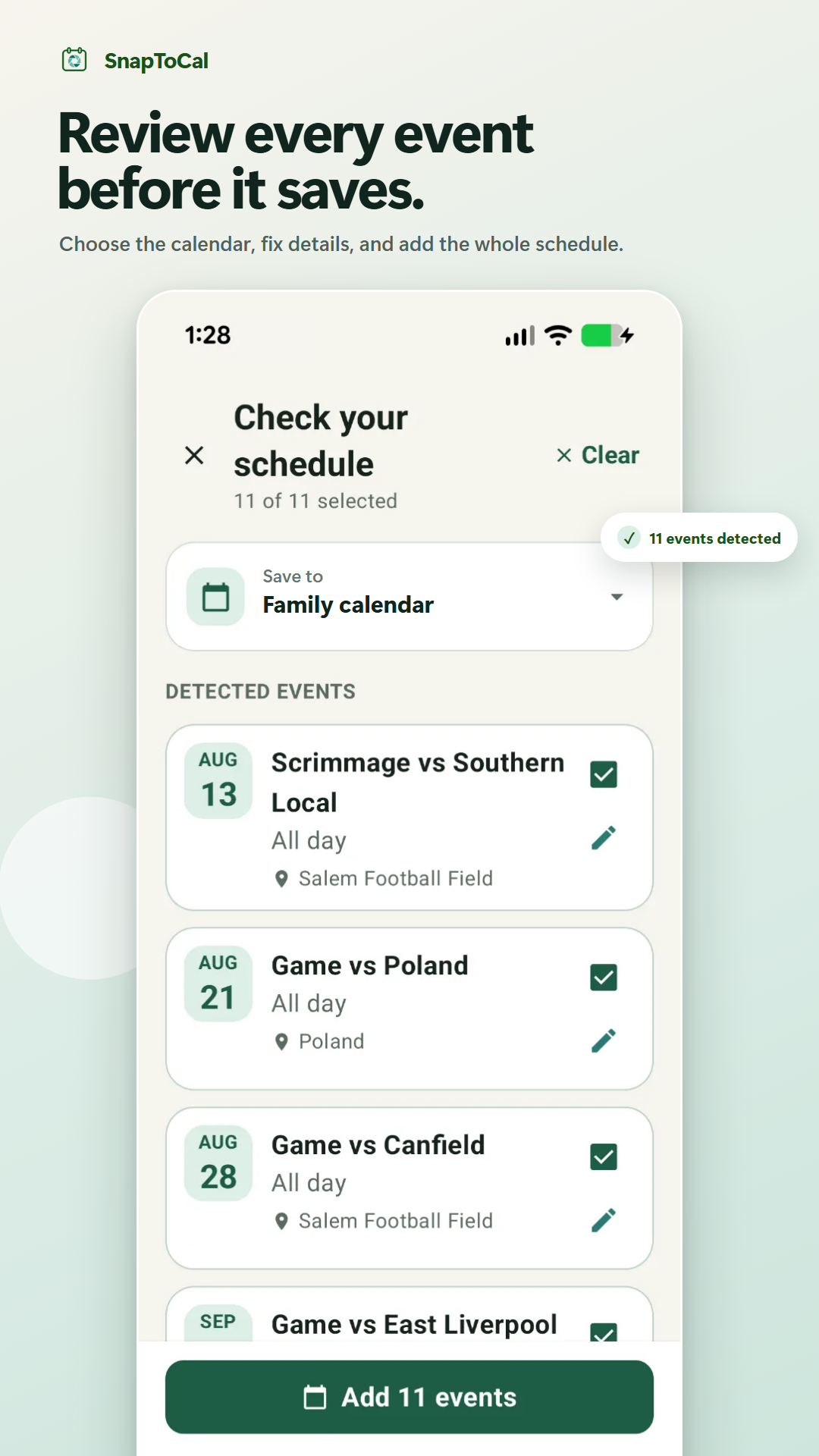
Check titles, dates, start and end times, and locations. Correct anything missing or misread, and deselect dates that do not belong on your calendar. Nothing is added while you are still reviewing.
Choose your Google Calendar and save
Select the writable Google calendar you want from the calendars available on your device, then add the selected events. Open Google Calendar afterward and check the first and last event. A local device calendar will not become a Google calendar just because you saved events to it.
See the app's event review screen
Details to check before saving
Dates such as 04/05
Confirm whether the source means April 5 or May 4. Also check the year, especially for a school term or sports season that crosses into January.
Missing or shortened times
A flyer may say 'after school' or omit AM/PM. Confirm the intended time with the source and edit the event before saving; do not treat an extracted guess as a confirmed time.
More than one child's schedule
Select only the rows you need and use titles that identify the activity or child. Check the destination calendar before saving a batch.
Common questions
Can I add several events from one screenshot?
SnapToCal can extract multiple dated entries into a review list. Check the number of events against the source and confirm each date before adding the selected entries together.
What if my Google Calendar is missing?
Confirm that the Google account is on your phone, calendar sync is enabled, and you have permission to add events. Refresh the available calendars in SnapToCal. Read-only subscribed calendars cannot accept new events.
Will editing the original image update my calendar?
No. Importing an image does not create a live subscription to that image or its sender. Review later changes and update the affected calendar events deliberately.
Does this work on iPhone?
This guide covers the Android app. The SnapToCal iPhone version is in development; the website has a launch-list link for updates.
See SnapToCal support for help and the privacy policy for how schedule content is processed.
Ready to review your schedule?
Get SnapToCal for Android. Check the app for current plans and scan limits; PDF uploads require Pro.
Get SnapToCal on Google Play